install.packages(c("tidyverse", "palmerpenguins"))Lab 2: Workflow and Data Types
Working with data frames in R using the palmerpenguins dataset to practice data inspection, data types, and simple summaries.
Student Learning Outcomes
By the end of lab you should be able to:
- Access our Posit Cloud workspace and start a project from a template.
- Load course packages (the tidyverse) and access the
palmerpenguinsdataset. - Inspect a dataset to answer:
- How many observations/variables?
- What are the variable names?
- What are their data types?
- Produce quick summaries of all variables.
- Explore the relationship between two numerical variables using a scatterplot.
Important
Paper handout: You will answer questions on a paper worksheet as you move through this page. This page will tell you exactly when to answer each question (e.g., Worksheet Q1).
Setup and workflow
1) Join the course workspace on Posit Cloud
- Open the course Posit Cloud link from the D2L announcement.
- Sign in with your Posit Cloud account.
- Join the course workspace. You will be redirected to a Welcome screen.
Worksheet Q1
Write down the name of the workspace you joined. You can see this in the left navigation bar under Spaces.
Tip
If you are already in the workspace, proceed to the next step.
2) Start your Lab 2 project from the template
- In the course workspace, click the Content heading to see projects in the workspace.
- Click the bluen START button the Lab 2 project. This will create your own copy of the project and open it.
Worksheet Q2:
What is the name of your Lab 2 project?
Note
Why we use Projects: Projects keep your code, data, and outputs together in one folder and make relative file paths work reliably.
3) Create an R script
In your Lab 2 project, create a new R script:
- In the Files pane, click New File → R Script.
- Save the file immediately.
- Name the script:
lab-02.R
Packages and the penguins dataset
4) Packages for this course
In R, shared code is distributed as packages (bundles of functions, data, and documentation).
In this course we will use the tidyverse in every lab moving forward.
For this lab you will use:
-
tidyverse(especially dplyr, ggplot2, readr, tibble) -
palmerpenguins(the dataset source)
Install packages
Copy the code from the box below by clicking the clipboard icon, paste it into the Console (not your script), and run it to install the required packages.
Load packages (run every new session)
Put this at the top of your script and run it:
# load packages -----------------------------------------------------------

library(tidyverse)      # tools for working with data
library(palmerpenguins) # penguin dataset
Worksheet Q3:
What is the difference between installing a package and loading a package?
Tiptidyverse messages
When you load the tidyverse, you will see some messages in the console. These are telling you that tidyverse is loading some other packages for you, and that some of their functions have the same name as some functions in base R packages.
You can usually just ignore these messages.
Data frames, tibbles, and penguins
5) What is a data frame? What is a tibble?
A data frame is the basic table-like data structure in R:
- Rows = observations (cases, individuals, sampling units)
- Columns = variables (measurements or categories)
A tibble is a modern version of a data frame used by the tidyverse:
- Prints in a cleaner way (doesn’t flood your console)
- Keeps variable types visible
- Plays nicely with tidyverse functions
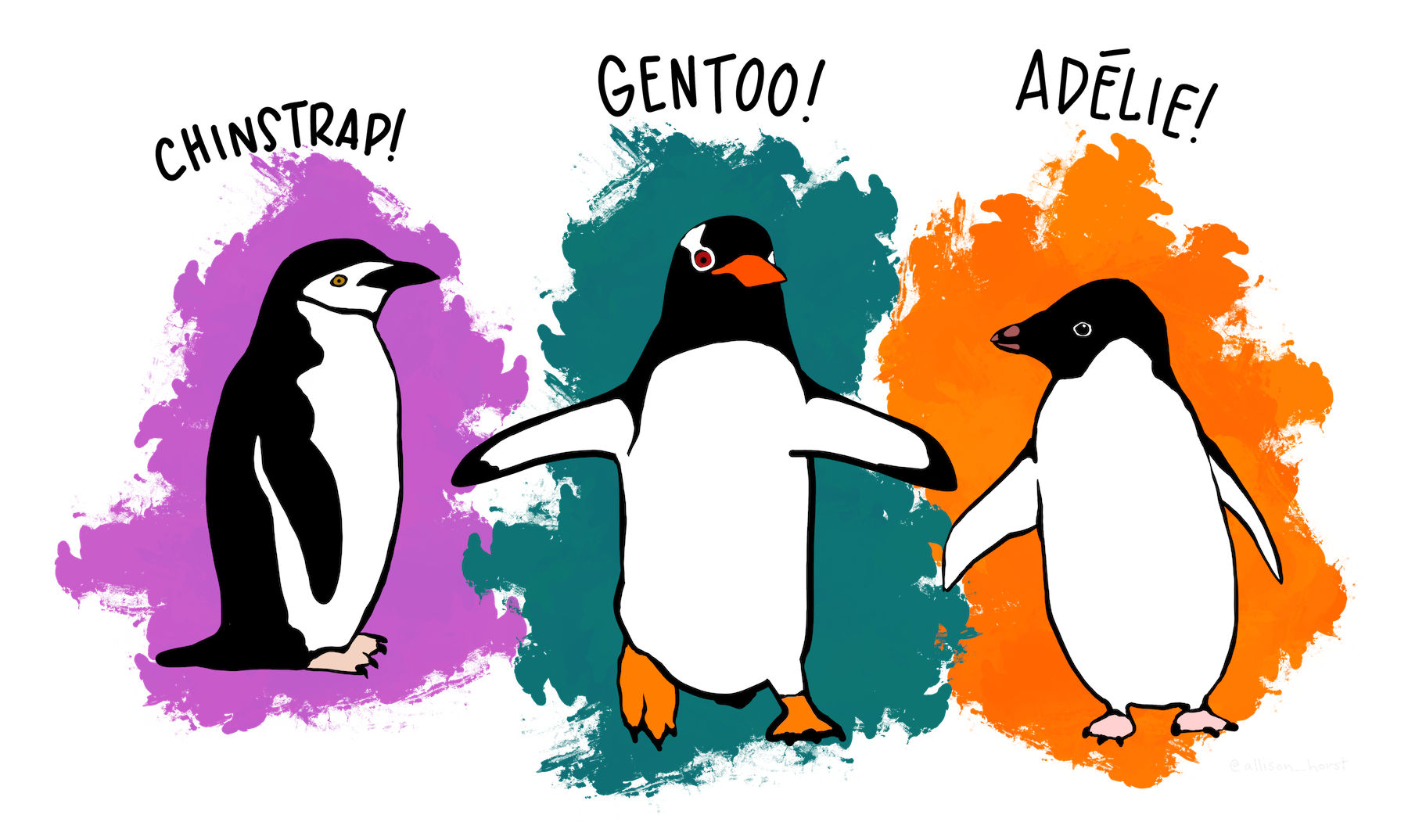
The palmerpenguins package includes a dataset named penguins with measurements from penguins in the Palmer Archipelago (Antarctica).
Run this to print the penguins object in the console:
penguins# A tibble: 344 × 8
species island bill_length_mm bill_depth_mm flipper_length_mm body_mass_g
<fct> <fct> <dbl> <dbl> <int> <int>
1 Adelie Torgersen 39.1 18.7 181 3750
2 Adelie Torgersen 39.5 17.4 186 3800
3 Adelie Torgersen 40.3 18 195 3250
4 Adelie Torgersen NA NA NA NA
5 Adelie Torgersen 36.7 19.3 193 3450
6 Adelie Torgersen 39.3 20.6 190 3650
7 Adelie Torgersen 38.9 17.8 181 3625
8 Adelie Torgersen 39.2 19.6 195 4675
9 Adelie Torgersen 34.1 18.1 193 3475
10 Adelie Torgersen 42 20.2 190 4250
# ℹ 334 more rows
# ℹ 2 more variables: sex <fct>, year <int>Worksheet Q4:
What does a row represent in the
penguinsdataset? What does a column represent?
Inspecting a dataset and identifying variable types
6) Basic inspection tools
There are many functions that give you information about a dataset. Some, like the next example, are basic functions included in R.
Size: nrow() and ncol()
The classic way to inspect a dataset is will functions like nrow() and ncol, which return the number of rows and columns in a data frame.
Worksheet Q5:
How many rows and columns are in
penguins?
Print: look at a few rows (without printing everything)
With modern tibbles, printing in the console provides the same information as the previous two functions, plus a lot more.
Run the following lines of code, pausing to see the output after each line. Can you spot where the number of rows and columns is displayed in the output?
Structure overview: glimpse()
This is the fastest way to see:
- variable (column) names
- variable types (R classes)
- a preview of values
glimpse(penguins)Rows: 344
Columns: 8
$ species <fct> Adelie, Adelie, Adelie, Adelie, Adelie, Adelie, Adel…
$ island <fct> Torgersen, Torgersen, Torgersen, Torgersen, Torgerse…
$ bill_length_mm <dbl> 39.1, 39.5, 40.3, NA, 36.7, 39.3, 38.9, 39.2, 34.1, …
$ bill_depth_mm <dbl> 18.7, 17.4, 18.0, NA, 19.3, 20.6, 17.8, 19.6, 18.1, …
$ flipper_length_mm <int> 181, 186, 195, NA, 193, 190, 181, 195, 193, 190, 186…
$ body_mass_g <int> 3750, 3800, 3250, NA, 3450, 3650, 3625, 4675, 3475, …
$ sex <fct> male, female, female, NA, female, male, female, male…
$ year <int> 2007, 2007, 2007, 2007, 2007, 2007, 2007, 2007, 2007…Worksheet Q6:
From
glimpse(penguins), list three variables in the penguins dataset.
Quick counts: dplyr::count()
Use count() to see how many observations fall in each category:
Worksheet Q7:
Which species is most common in the dataset? How many rows are there for that species?
7) Connecting lecture data types to R variable types
In lecture, you learned data types like nominal, ordinal, discrete, and continuous.
In R, what you see in glimpse() is usually a class (type) such as:
-
character(text) -
factor(categorical with a fixed set of levels) -
logical(TRUE/FALSE) -
integer(whole numbers) -
double/numeric(numbers with decimals)
These two systems overlap, but they are not identical. This table is a practical crosswalk:
| Lecture concept | Typical meaning | Common R type(s) you’ll see | Short name in a tibble | Notes |
|---|---|---|---|---|
| Nominal (categorical) | categories with no order |
factor, character
|
fct, chr
|
factor is preferred for “known categories” |
| Ordinal (categorical) | categories with order |
factor (ordered) |
fct |
ordering must be defined explicitly |
| Discrete (numeric) | counts (0, 1, 2, …) |
integer, sometimes double
|
int |
counts can be stored as numeric even if “discrete” |
| Continuous (numeric) | measured on a continuum |
double / numeric
|
dbl |
most measurements are double
|
Worksheet Q8:
Choose two variables in
penguinsand write their type using (a) lecture terminology and (b) R type fromglimpse().
Summarizing variables
8) Summaries you can generate quickly
Base R summary: summary()
This gives different summaries depending on variable type:
summary(penguins)- For numeric variables: min, quartiles, median, mean, max (plus
NAs) - For categorical variables: counts per category (plus
NAs)
Worksheet Q9:
Use
summary(penguins)to answer: Which variable(s) show missing values?
Thinking about relationships between variables
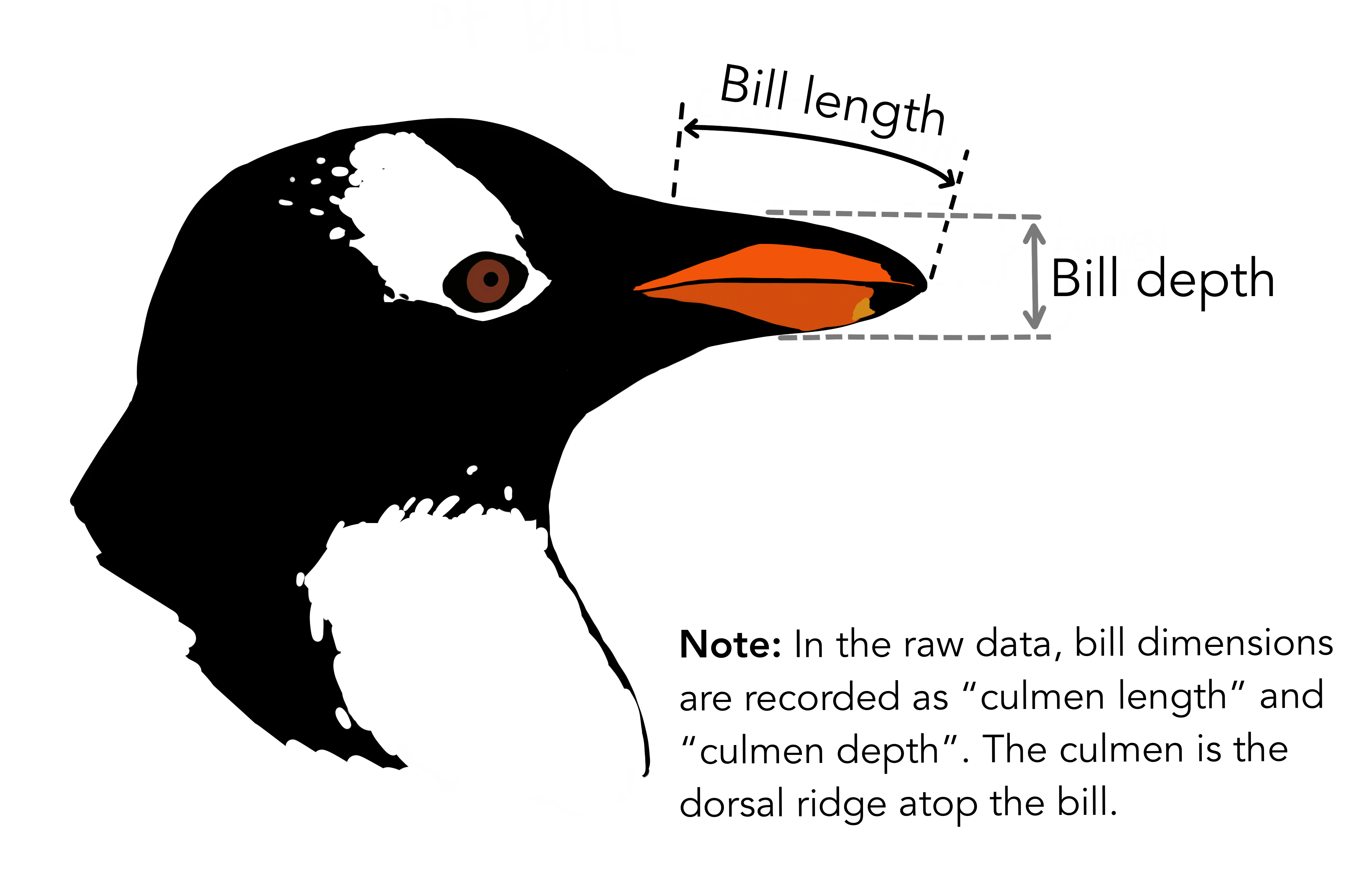
In this section, you will explore the relationship between two penguin traits: bill length and bill depth. These measurements describe different dimensions of the penguin’s bill and are commonly used to study variation among individuals and species. Refer to the diagram below to be clear on what is meant by length versus depth.
9) Predict the relationship before plotting
Before running any code, think about how these two variables might be related. If a penguin has a longer bill, do you expect it to also have a deeper bill, or might there be little or no relationship between them?
Worksheet Q10
Sketch your prediction by:
- Drawing x- and y-axes
- Labeling the axes bill length and bill depth
- Drawing a line or pattern that shows how you think the two variables are related
Do this before you generate the plot in R.
10) Make a scatterplot with ggplot2
The following code example is adapted from the palmerpenguins package website:
https://allisonhorst.github.io/palmerpenguins/articles/examples.html
Copy this code to your script exactly as written:
ggplot(
  data = penguins,
  mapping = aes(x = bill_length_mm, y = bill_depth_mm, group = species)
) +
  geom_point(
    aes(color = species, shape = species),
    size = 3,
    alpha = 0.8
  ) +
  geom_smooth(method = "lm", se = FALSE, aes(color = species)) +
  scale_color_manual(values = c("darkorange", "purple", "cyan4")) +
  labs(
    title = "Penguin bill dimensions",
    subtitle = "Bill length and depth for Adelie, Chinstrap and Gentoo Penguins at Palmer Station LTER",
    x = "Bill length (mm)",
    y = "Bill depth (mm)",
    color = "Penguin species",
    shape = "Penguin species"
  ) +
  theme(
    legend.position = c(0.85, 0.15),
    plot.title.position = "plot",
    plot.caption = element_text(hjust = 0, face = "italic"),
    plot.caption.position = "plot"
  )
Worksheet Q11:
Briefly interpret the plot:
- What is the relationship between bill length and bill depth?
- Do species appear to differ? How?
Wrap-up and submission
- Make sure your script is saved in your Lab 2 project.
- Keep your worksheet and show it to a Learning Assistant to have it initialed before you leave lab. You may do this as soon as you finish.